mirror of
https://github.com/danny-avila/LibreChat.git
synced 2025-12-17 17:00:15 +01:00
 bce4f41fae
* mkdocs plugins: add plugin for social cards and plugin that allow to exclude a folder

* docs: fix hyperlinks

* mkdocs: social cards (descriptions) for 'contributions' and 'deployment' guides

* mkdocs: social cards (descriptions) for all 'index.md'

* mkdocs: social cards (descriptions) for 'features' and 'plugins'

* mkdocs: social cards (descriptions) for 'general_info'

* mkdocs: social cards (descriptions) for 'configuration'

* mkdocs: social cards (descriptions) for 'installation'

* mkdocs: minor fixes

* update librechat.svg

* update how_to_contribute.md

add reference to the official GitHub documentation
144 lines
6.4 KiB
Markdown
144 lines
6.4 KiB
Markdown
---
|
|
title: ⚡ Azure AI Search
|
|
description: How to configure Azure AI Search for answers to your questions with assistance from GPT.
|
|
weight: -4
|
|
---
|
|
# Azure AI Search Plugin
|
|
Through the plugins endpoint, you can use Azure AI Search for answers to your questions with assistance from GPT.
|
|
|
|
## Configurations
|
|
|
|
### Required
|
|
|
|
To get started, you need to get a Azure AI Search endpoint URL, index name, and a API Key. You can then define these as follows in your `.env` file:
|
|
|
|
```env
|
|
AZURE_AI_SEARCH_SERVICE_ENDPOINT="..."
|
|
AZURE_AI_SEARCH_INDEX_NAME="..."
|
|
AZURE_AI_SEARCH_API_KEY="..."
|
|
```
|
|
Or you need to get an Azure AI Search endpoint URL, index name, and an API Key. You can define them during the installation of the plugin.
|
|
|
|
### AZURE_AI_SEARCH_SERVICE_ENDPOINT
|
|
|
|
This is the URL of the search endpoint. It can be obtained from the top page of the search service in the Cognitive Search management console (e.g., `https://example.search.windows.net`).
|
|
|
|
### AZURE_AI_SEARCH_INDEX_NAME
|
|
|
|
This is the name of the index to be searched (e.g., `hotels-sample-index`).
|
|
|
|
### AZURE_AI_SEARCH_API_KEY
|
|
|
|
This is the authentication key to use when utilizing the search endpoint. Please issue it from the management console. Use the Value, not the name of the authentication key.
|
|
|
|
# Introduction to tutorial
|
|
|
|
## Create or log in to your account on Azure Portal
|
|
|
|
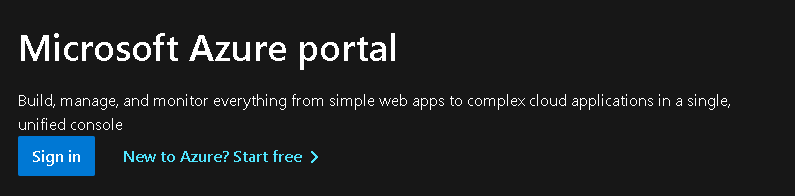
**1.** Visit **[https://azure.microsoft.com/en-us/](https://azure.microsoft.com/en-us/)** and click on `Get started` or `Try Azure for Free` to create an account and sign in.
|
|
|
|
**2.** Choose pay per use or Azure Free with $200.
|
|
|
|
|
|
|
|
## Create the Azure AI Search service
|
|
|
|
**1.** Access your control panel.
|
|
|
|
**2.** Click on `Create a resource`.
|
|
|
|

|
|
|
|
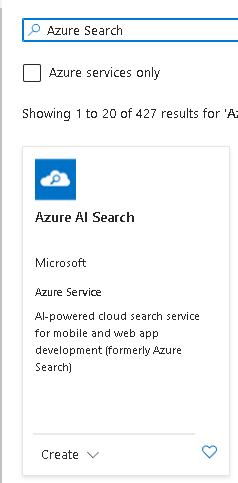
**3.** Search for `Azure Search` in the bar and press enter.
|
|
|
|
|
|
|
|
**4.** Now, click on `Create`.
|
|
|
|
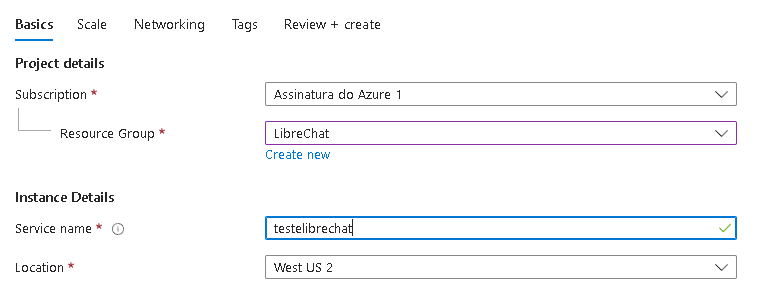
**5.** Configure the basics settings, create a new or select an existing Resource Group, name the Service Name with a name of your preference, and then select the location.
|
|
|
|
|
|
|
|
**6.** Click on `Change Pricing Tier`.
|
|
|
|

|
|
|
|
Now select the free option or select your preferred option (may incur charges).
|
|
|
|

|
|
|
|
**7.** Click on `Review + create` and wait for the resource to be created.
|
|
|
|

|
|
|
|
## Create your index
|
|
|
|
**1.** Click on `Import data`.
|
|
|
|

|
|
|
|
**2.** Follow the Microsoft tutorial: **[https://learn.microsoft.com/en-us/azure/search/search-get-started-portal](https://learn.microsoft.com/en-us/azure/search/search-get-started-portal)**, after finishing, save the name given to the index somewhere.
|
|
|
|
**3.** Now you have your `AZURE_AI_SEARCH_INDEX_NAME`, copy and save it in a local safe place.
|
|
|
|
## Get the Endpoint
|
|
|
|
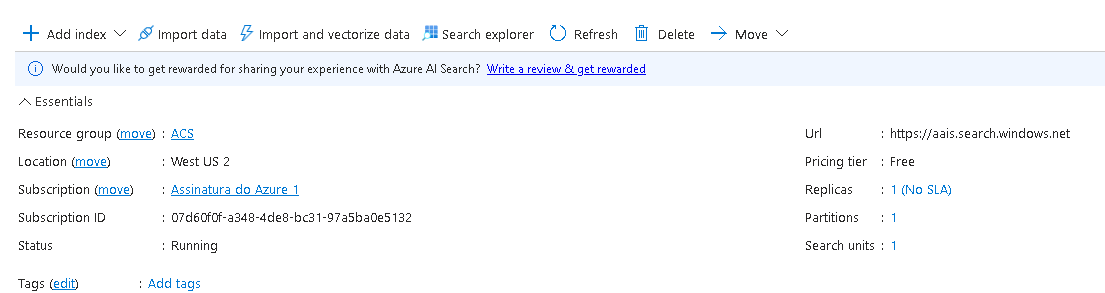
**1.** In the `Url:` you have your `AZURE_AI_SEARCH_SERVICE_ENDPOINT`, copy and save it in a local safe place.
|
|
|
|
|
|
|
|
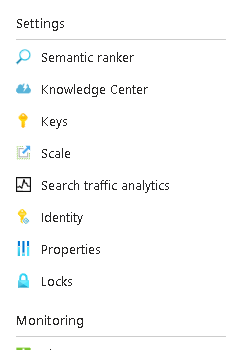
**2.** On the left panel, click on `keys`.
|
|
|
|
|
|
|
|
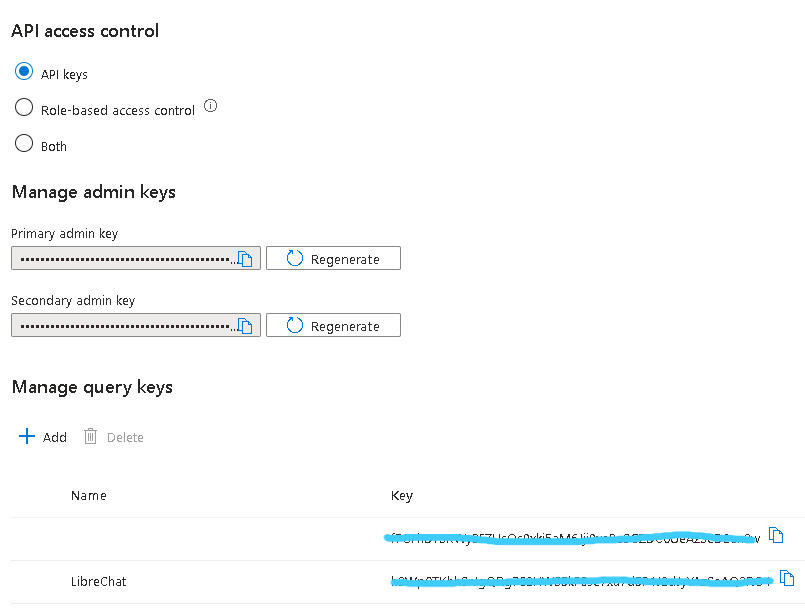
**3.** Click on `Add` and insert a name for your key.
|
|
|
|
**4.** Copy the key to get `AZURE_AI_SEARCH_API_KEY`.
|
|
|
|
|
|
|
|
# Configure in LibreChat:
|
|
|
|
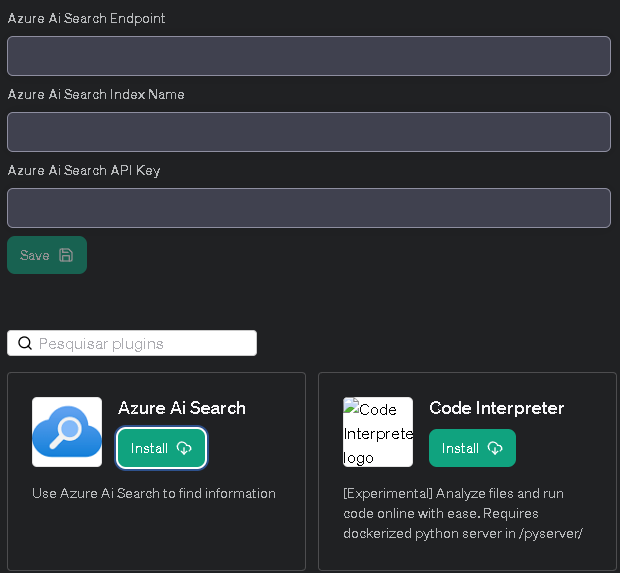
**1.** Access the Plugins and click to install Azure AI Search.
|
|
|
|
|
|
|
|
**2.** Fill in the Endpoint, Index Name, and API Key, and click on `Save`.
|
|
|
|
# Conclusion
|
|
|
|
|
|
|
|
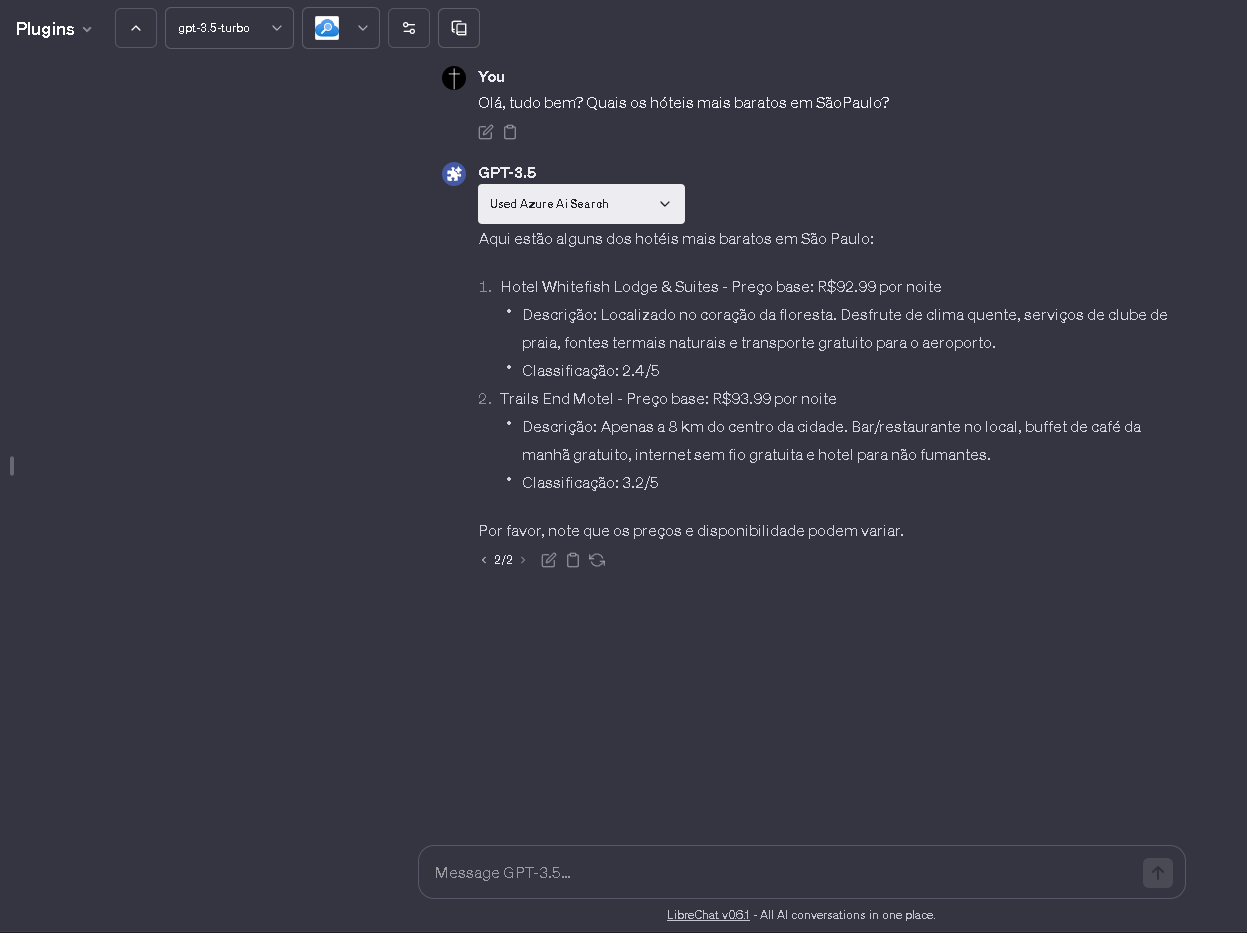
Now, you will be able to conduct searches using Azure AI Search. Congratulations! 🎉🎉
|
|
|
|
## Optional
|
|
|
|
The following are configuration values that are not required but can be specified as parameters during a search.
|
|
|
|
If there are concerns that the search result data may be too large and exceed the prompt size, consider reducing the size of the search result data by using AZURE_AI_SEARCH_SEARCH_OPTION_TOP and AZURE_AI_SEARCH_SEARCH_OPTION_SELECT.
|
|
|
|
For details on each parameter, please refer to the following document:
|
|
**[https://learn.microsoft.com/en-us/rest/api/searchservice/search-documents](https://learn.microsoft.com/en-us/rest/api/searchservice/search-documents)**
|
|
|
|
```env
|
|
AZURE_AI_SEARCH_API_VERSION=2023-10-01-Preview
|
|
AZURE_AI_SEARCH_SEARCH_OPTION_QUERY_TYPE=simple
|
|
AZURE_AI_SEARCH_SEARCH_OPTION_TOP=3
|
|
AZURE_AI_SEARCH_SEARCH_OPTION_SELECT=field1, field2, field3
|
|
```
|
|
|
|
#### AZURE_AI_SEARCH_API_VERSION
|
|
|
|
Specify the version of the search API. When using new features such as semantic search or vector search, you may need to specify the preview version. The default value is `2023-11-1`.
|
|
|
|
#### AZURE_AI_SEARCH_SEARCH_OPTION_QUERY_TYPE
|
|
|
|
Specify `simple` or `full`. The default value is `simple`.
|
|
|
|
#### AZURE_AI_SEARCH_SEARCH_OPTION_TOP
|
|
|
|
Specify the number of items to search for. The default value is 5.
|
|
|
|
#### AZURE_AI_SEARCH_SEARCH_OPTION_SELECT
|
|
|
|
Specify the fields of the index to be retrieved, separated by commas. Please note that these are not the fields to be searched.
|